4.1-home-page-introduction
Accessing the Process Management Homepage
To enter the Homepage of Process Management:
- Navigate through the path: Console → Application Center
- Move the cursor to the "Process Management" card
- Click "Visit" to access the Process Management interface
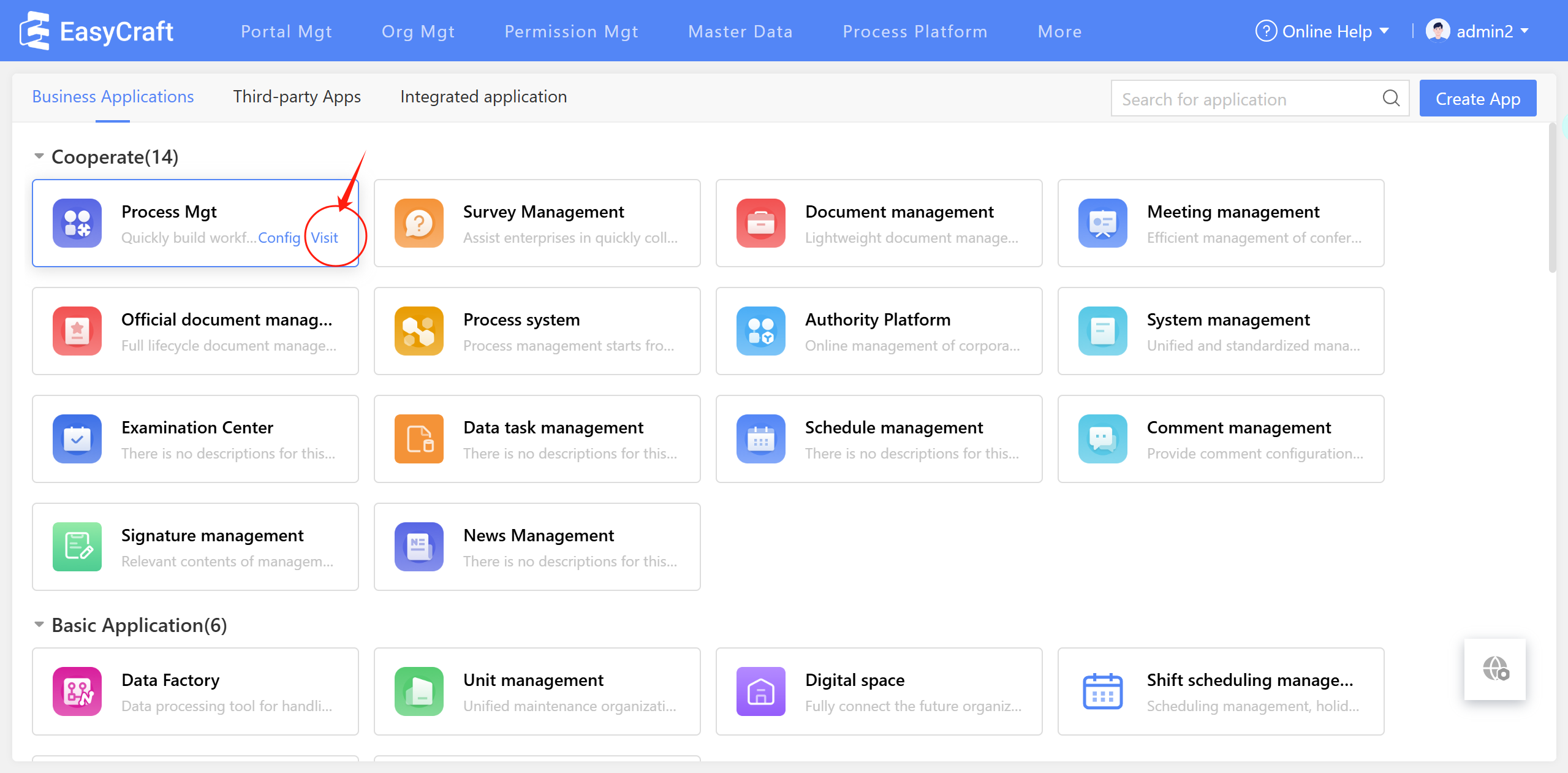
Figure: Process Management Homepage Entry
Accessing the Process Management Homepage
Figure 4.1–1 Entry to Visit The Process Homepage
Upon accessing the front end of Process Management, the system defaults to the Process Home page. This page provides a statistical analysis and display of process instances.
Homepage Features
1. Statistical Summaries
Key metrics displayed numerically:
- To-do: Count of instances awaiting user approval
- Completed: Count of instances already processed by user
- My Request: Count of instances initiated by user
- Process Library: Count of all available processes
2. Graphical Statistics
Visual representations for:
- "My Request"
- "Completed" providing intuitive overviews of process activity.
3. Quick Access Sections
-
Recent:
- Displays recently initiated process templates
- Sorted by initiation time (newest first)
-
Common Processes:
- Customizable list of frequently used templates
- Maximum of 20 processes can be added
- Drag-and-drop reordering supported
- Add/remove processes using the star icon (★)
- Click star to add to Common Processes
- Click again to remove
4. Task Lists
Organized into three tabs:
| Tab | Description | Key Features |
|---|---|---|
| To-Do | Tasks requiring action | Quick approve/reject actions |
| Completed | Finished tasks | Displays key document info in list format |
| My Requests | User-initiated processes | Shows status and details |
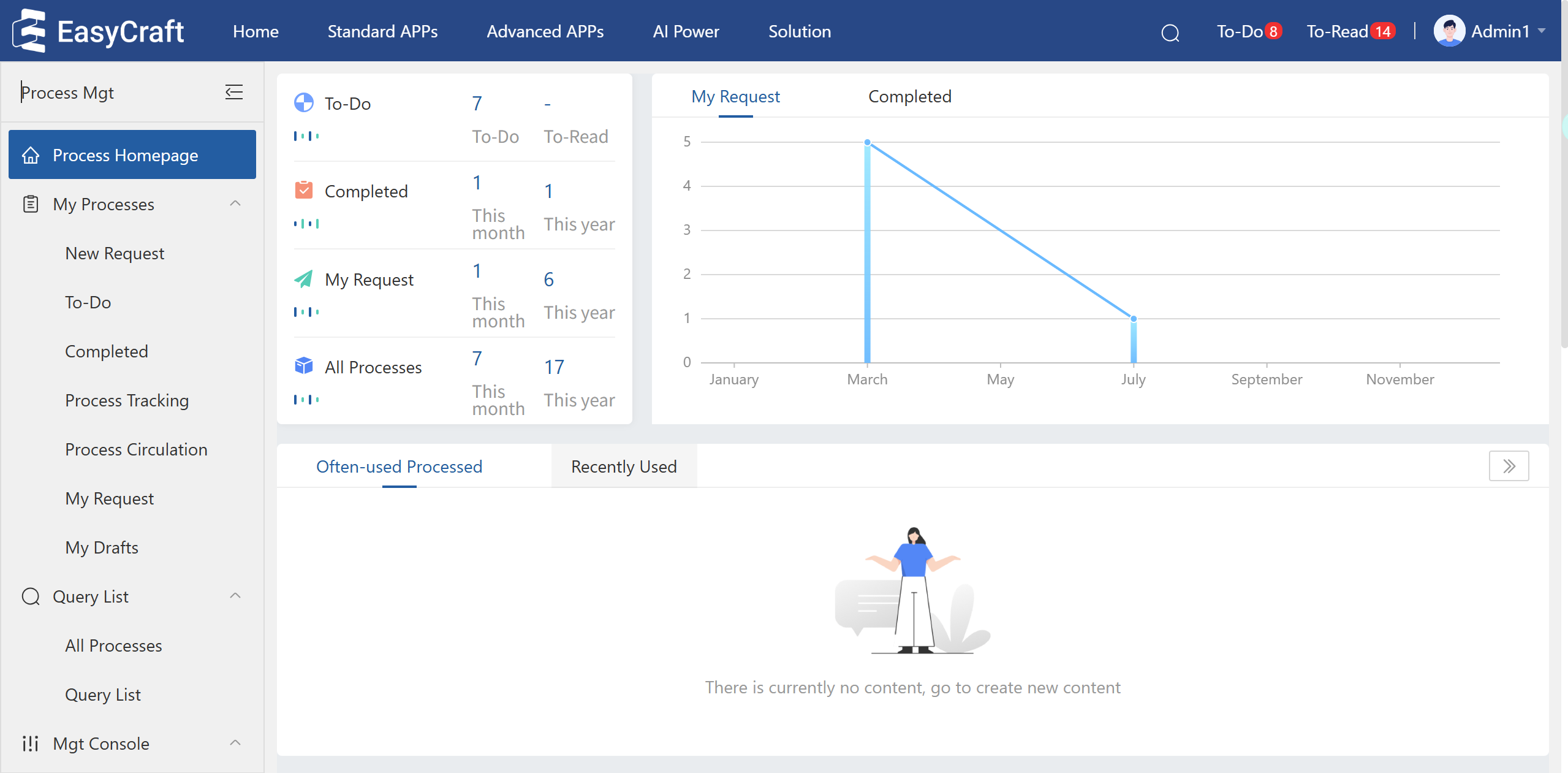
Figure 4.1–2 Process Homepage